Loading workspace...

MiniMax H3 Image

Create from Text. Edit with Words.

Give your next visual a clear direction. Start with a written idea or upload an image, then explore product scenes, campaign artwork, interior concepts, and social content in one image workspace. Describe the subject, composition, lighting, and mood you want, and refine the result around your brief. From an early creative sketch to a more considered visual direction, make room for experimentation without starting every idea from a blank canvas.

Explore a new visual direction
Upload an image to edit
Create in your browser
Hero image
MiniMax H3 Image

MiniMax H3 Image for Creative Image Generation

A useful image begins with a specific brief. Explore these visual directions for inspiration, then bring your own subject, reference, and design choices into the workspace. Each approach answers a different creative need.

Create Campaign Visuals with MiniMax H3 Image

Create Campaign Visuals with MiniMax H3 Image

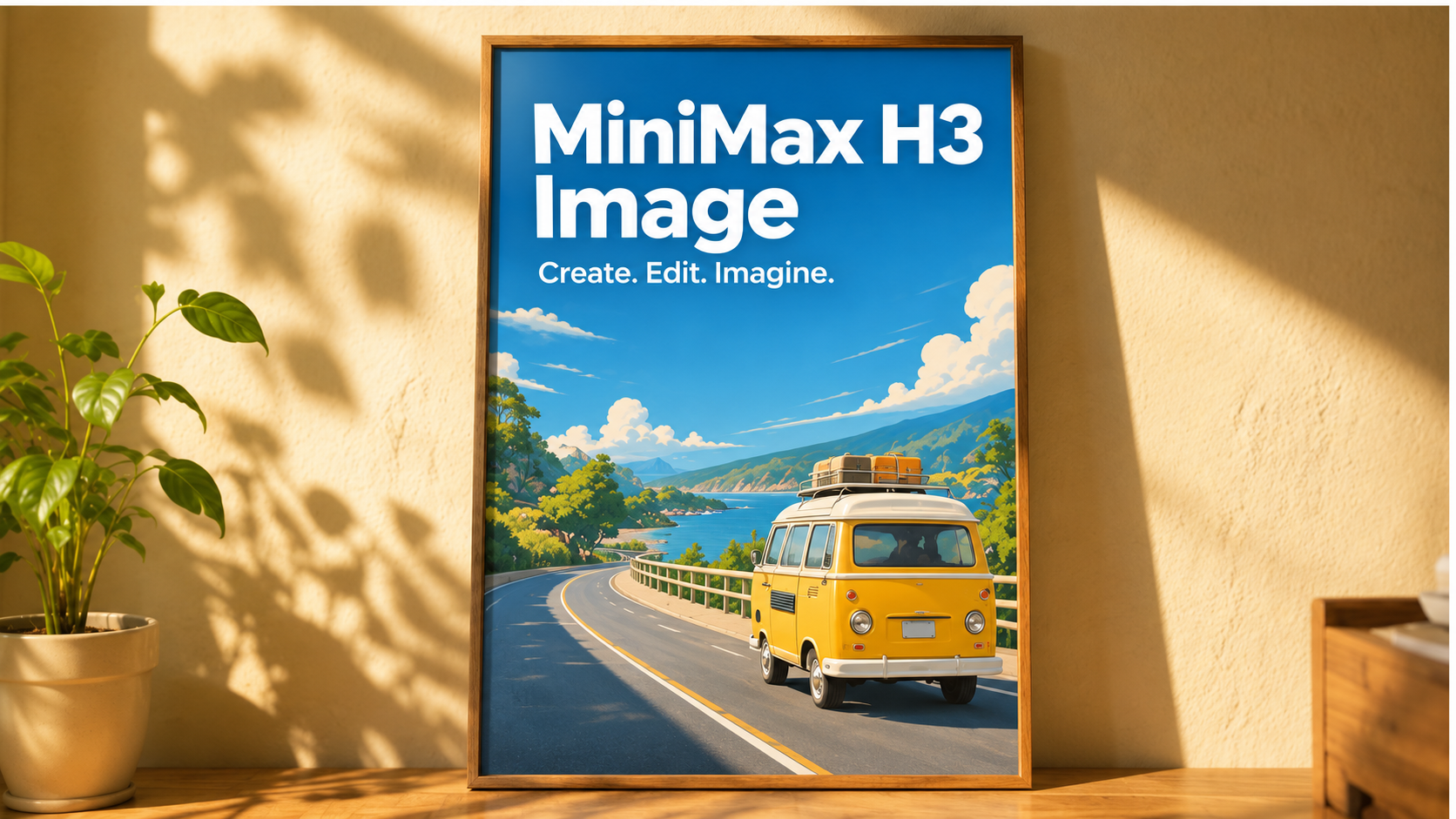
Plan a poster, social graphic, or campaign concept around a subject people can recognize at a glance. Describe the setting, color palette, and focal point before adding decorative details. For a travel-inspired visual, that might mean a winding coastal road, a warm yellow camper, and clear blue skies. Leave room for your message, then check any generated lettering carefully before using the artwork in a finished design.

Style Product Scenes with MiniMax H3 Image

Style Product Scenes with MiniMax H3 Image

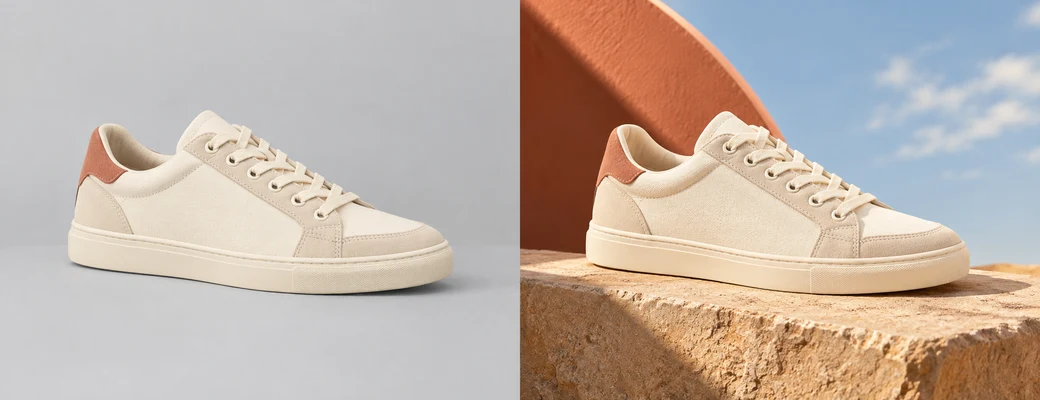
Use a product image as the starting point for a different scene. Specify the surface, background, light direction, and camera angle that fit your campaign. A neutral studio setup and a sunlit architectural setting can communicate very different moods around the same subject. In your edit request, identify the product details that should stay unchanged, then review the result for accurate shape, materials, color, and branding before moving forward.

Explore Interior Styles with MiniMax H3 Image

Explore Interior Styles with MiniMax H3 Image

Try a new visual direction for a room by describing the changes you want to explore. Warm walls, softer daylight, a different artwork, or a few colorful accessories can become a focused interior brief. Separate those changes from the furniture and layout you want to retain. Review the edited image as a design concept, paying attention to proportions, object placement, and how the proposed colors work together.

Why Create with MiniMax H3 Image?

Keep the creative brief close to the generation controls. Choose your starting point, make a deliberate change, and evaluate the result against the purpose of the image rather than chasing a different style with every attempt.

Text-to-Image and Image Editing

Begin with text when you want to explore a new composition, or use an existing image when your brief already has a visual anchor. Keeping both starting points in the same workspace lets you choose the approach that suits the task. You can develop a fresh concept for one project and start from a supplied asset for the next, without forcing both into the same process.

Natural-Language Creative Control

Explain your idea through the details that matter: the subject, its surroundings, the lighting, and the intended mood. For edits, say what should change and what should remain. This makes the brief easier to review and improves how you compare successive attempts. You do not need to describe everything at once; start with the essential composition and add a more specific instruction when you see what needs attention.

Focused Image Refinement

Use the current result to decide your next change. Look at the overall composition first, then inspect important details such as packaging, hands, edges, shadows, and text. Keep the strongest direction and refine a specific issue instead of rewriting the whole brief. This gives your iterations a purpose and makes it easier to communicate which visual choices should carry into the final design.

How to Use MiniMax H3 Image

Start with a clear idea, choose the inputs that fit your task, and review the result before moving on. These three steps work for both fresh concepts and image edits.

1

Describe or Upload

Write the image you want to create, or switch to image input and upload a reference. Identify the main subject, setting, composition, and lighting. For an edit, clearly separate what you want changed from the details that should remain in place.

2

Generate Your Image

Review your prompt and the settings available in the workspace, then check the displayed cost before generating. Keep the first brief focused on one visual goal. If you are exploring alternatives, change one meaningful detail at a time so you can compare results.

3

Review and Download

Inspect the result for composition, subject details, and any text you requested. Refine the prompt or reference if something needs work, then download the version that fits your brief. Keep your chosen prompt with the image so the creative direction is easy to revisit.

MiniMax H3 Image Use Cases

The strongest workflow starts with a real audience and a concrete deliverable. Use the image workspace to explore a direction, communicate a concept, or prepare a visual for further design work.

Product Campaign Concepts

E-commerce teams can start with an existing product photo and explore settings for a seasonal campaign. Describe the surface, props, and atmosphere while identifying the product features to retain. Use the resulting concepts to discuss art direction with your team, then check the product against the original before adapting the visual for a listing or advertisement.

Social Content Planning

Social media managers can turn a campaign idea into a set of visual directions for upcoming posts. Begin with a clear subject and recurring palette, then vary the background or composition for each message. Review the images together to select a coherent direction, leaving space for final captions, platform-specific layouts, and any brand assets added during design.

Interior Design Discussions

Interior designers and homeowners can use a room image to explore color, lighting, and styling choices before committing to a direction. Ask for a focused change, such as a warmer wall color or different accessories, while describing the layout to retain. The resulting concept can help make a design conversation more concrete and reveal combinations worth investigating further.

Editorial and Story Concepts

Writers and creative teams can translate an article theme or story moment into an illustration brief. Describe the central action, environment, perspective, and visual style, then generate a composition to discuss with an editor or designer. Use the selected direction as a starting point for a cover concept, presentation image, or storyboard frame that supports the narrative.

MiniMax H3 Image FAQ

Find practical answers about choosing inputs, writing a useful brief, reviewing an edit, and preparing an image for its next use.

The workspace supports both text and image inputs. Start with text when you want a new composition, or upload an image when you already have a subject or scene to work from. For image edits, explain the requested change and name the details you want retained so the brief has a clear focus.

Make Your Next Idea Visual

Start Creating with MiniMax H3 Image

Bring a clear prompt or an image you want to develop. Explore a new composition, try a different setting, or refine one detail at a time. Open the workspace, choose your starting point, and build a visual direction that fits your next project.

Text and image inputs
Prompt-based creative direction
Review, refine, and download