Loading workspace...

Create 16-Bit Pixel Videos From Text or Images with 16 Bit Pixel Video Generator

Turn prompts or a first-frame image into retro pixel-animation clips with 16 Bit Pixel Video Generator.

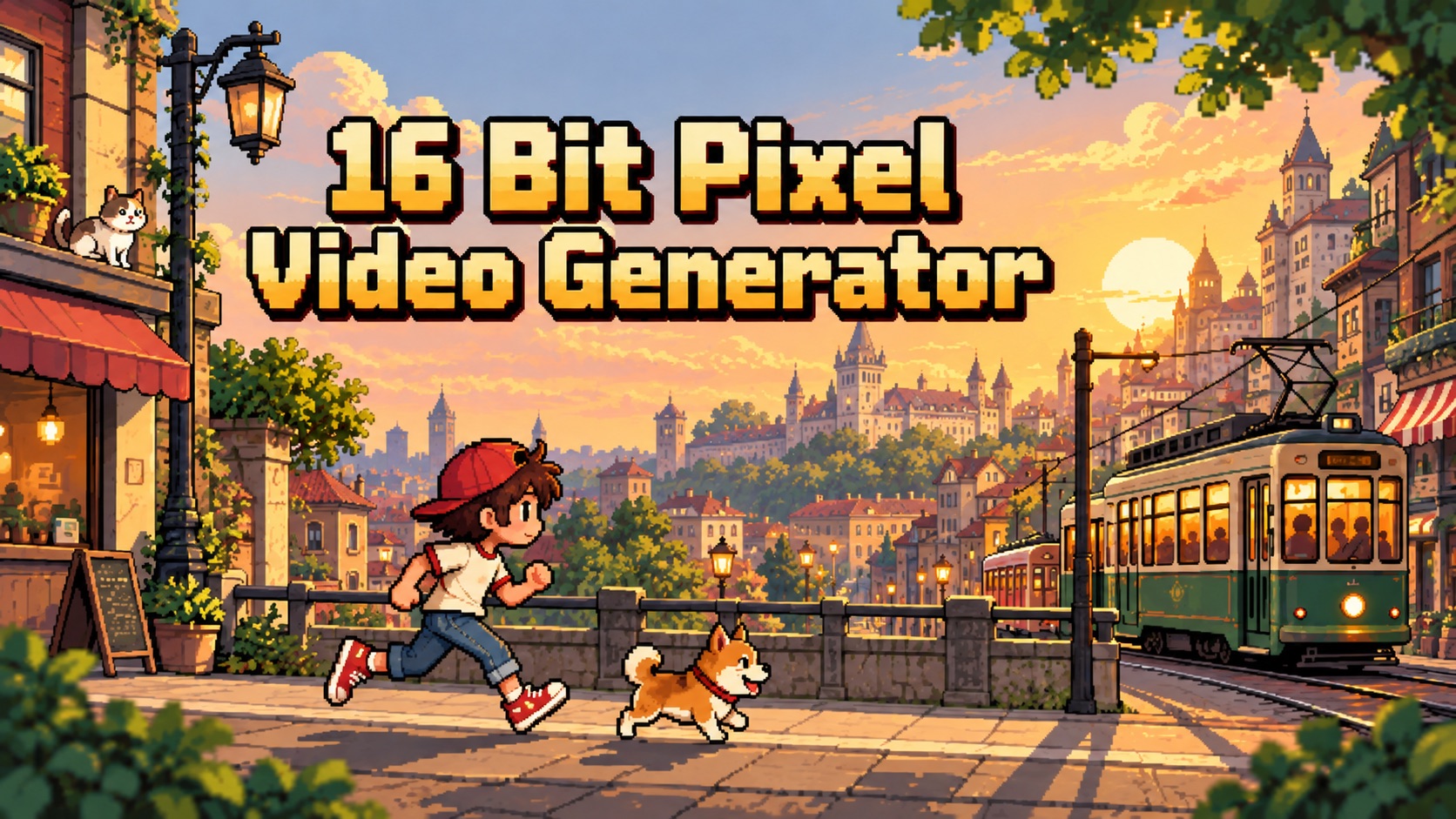
16 Bit Pixel Video Generator creates animated 16-bit pixel-art scenes from text or an uploaded first frame. Use AI Pixel Art Video Generator controls to describe action, camera movement, and sound, while MiniMax H3 Max 16-bit Pixel applies the retro visual style automatically. Build game-like scenes, character moments, action loops, or atmospheric pixel animations without drawing frames manually.

Start with text or a first-frame image
Describe motion, camera, and scene details
Generate a 16-bit pixel-animation video
Hero image
MiniMax H3 Max 16-bit Pixel

How to Use 16 Bit Pixel Video Generator

Use 16 Bit Pixel Video Generator in three steps: choose Text to Video or Image to Video, add a prompt and the available settings, then generate and review the result. AI Pixel Art Video Generator gives you direct control over motion and scene direction, while MiniMax H3 Max 16-bit Pixel supplies the characteristic 16-bit pixel-art look.

1

1. Choose Text to Video or Image to Video

Start 16 Bit Pixel Video Generator by choosing the workflow shown in the generator. In Text to Video, enter a prompt describing the scene, subject, action, camera behavior, and sound you want. In Image to Video, upload a first-frame image, then add a prompt that explains how the scene should move. AI Pixel Art Video Generator supports both starting points, while MiniMax H3 Max 16-bit Pixel handles the 16-bit pixel styling automatically. Use AI Pixel Video Generator when you want a fresh scene from text or a familiar composition animated from an image.

2

2. Add Your Prompt and Generation Settings

For text generation, write your prompt, choose an aspect ratio, and set the duration. 16 Bit Pixel Video Generator supports common landscape, square, and vertical formats in text mode. For image generation, upload the first frame and describe motion in the prompt; the image determines the output canvas. AI Pixel Art Video Generator works best when the prompt names the action, camera direction, pacing, and useful sound cues. MiniMax H3 Max 16-bit Pixel can turn those instructions into a coherent retro animation instead of a static pixel illustration.

3

3. Generate and Review the Pixel Video

Click Generate Video after your input is ready. 16 Bit Pixel Video Generator interprets the prompt and creates a pixel-animation clip with audio. Review the subject motion, scene continuity, camera movement, and overall rhythm. If the result needs adjustment, rewrite the action or camera instructions and generate again. AI Pixel Art Video Generator makes iteration straightforward because you can keep the concept while changing only the motion direction. MiniMax H3 Max 16-bit Pixel is especially useful for short retro game-like sequences, character actions, environmental loops, and stylized story beats.

What 16 Bit Pixel Video Generator Helps You Create

16 Bit Pixel Video Generator supports three practical workflows: create a scene from text, animate a first-frame image, or direct motion and sound with a detailed prompt. AI Pixel Art Video Generator keeps the creative control in your instructions, while MiniMax H3 Max 16-bit Pixel provides the recognizable retro pixel-animation style.

Turn Written Ideas Into Moving Pixel-Art Scenes

Turn Written Ideas Into Moving Pixel-Art Scenes

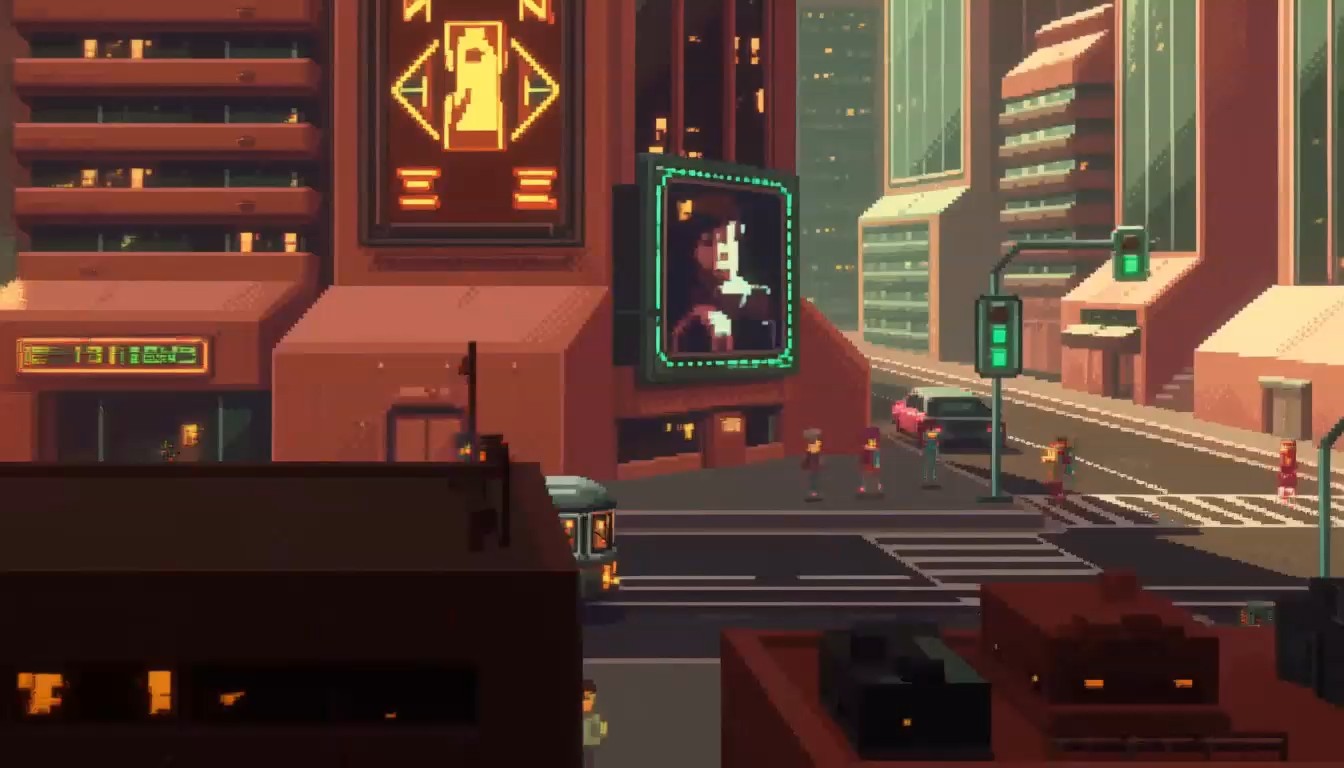
16 Bit Pixel Video Generator turns a short concept into an animated retro scene rather than a single still image. Describe a knight crossing a torch-lit dungeon, a subway arriving in a rainy pixel city, or a spaceship landing beside a desert outpost. AI Pixel Art Video Generator lets you specify how the subject moves, how the camera follows, and what ambience should be heard. MiniMax H3 Max 16-bit Pixel applies the style automatically, so prompts can focus on what happens in the shot. This makes 16 Bit Pixel Video Generator useful for story moments, game-inspired visuals, social clips, and animated concept tests. 16 Bit Pixel Video Generator also makes alternate scene ideas easy to test.

Animate a First Frame Without Rebuilding the Scene

Animate a First Frame Without Rebuilding the Scene

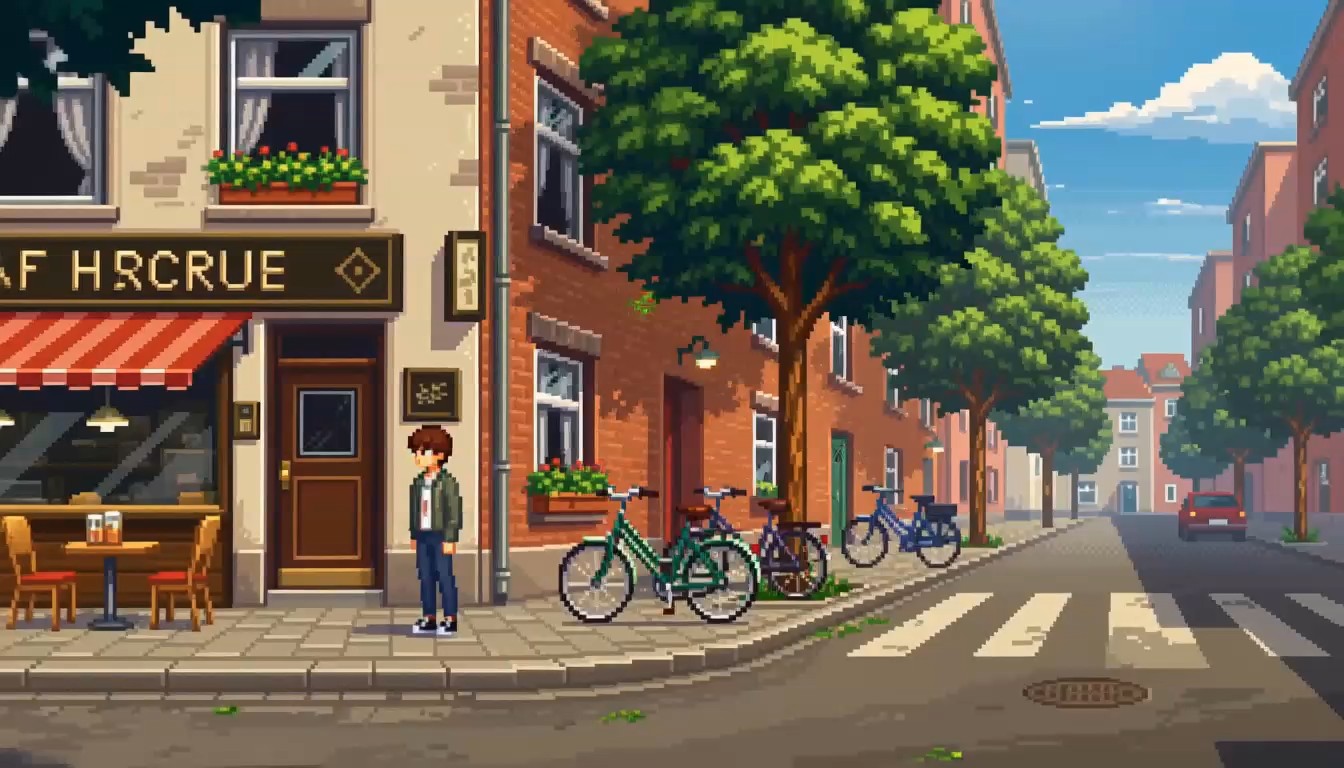
Upload a first-frame image when you already have the composition you want. 16 Bit Pixel Video Generator can use that image as the opening frame, then animate the scene according to your prompt. AI Pixel Art Video Generator is useful for adding walking, turning, drifting clouds, moving lights, environmental effects, or camera motion while keeping the initial layout recognizable. For the most consistent look, pixel artwork is a strong starting point. MiniMax H3 Max 16-bit Pixel then extends that frame into motion, making the workflow practical for character scenes, game mockups, and animated pixel illustrations.

Direct Motion, Camera, and Sound in One Prompt

Direct Motion, Camera, and Sound in One Prompt

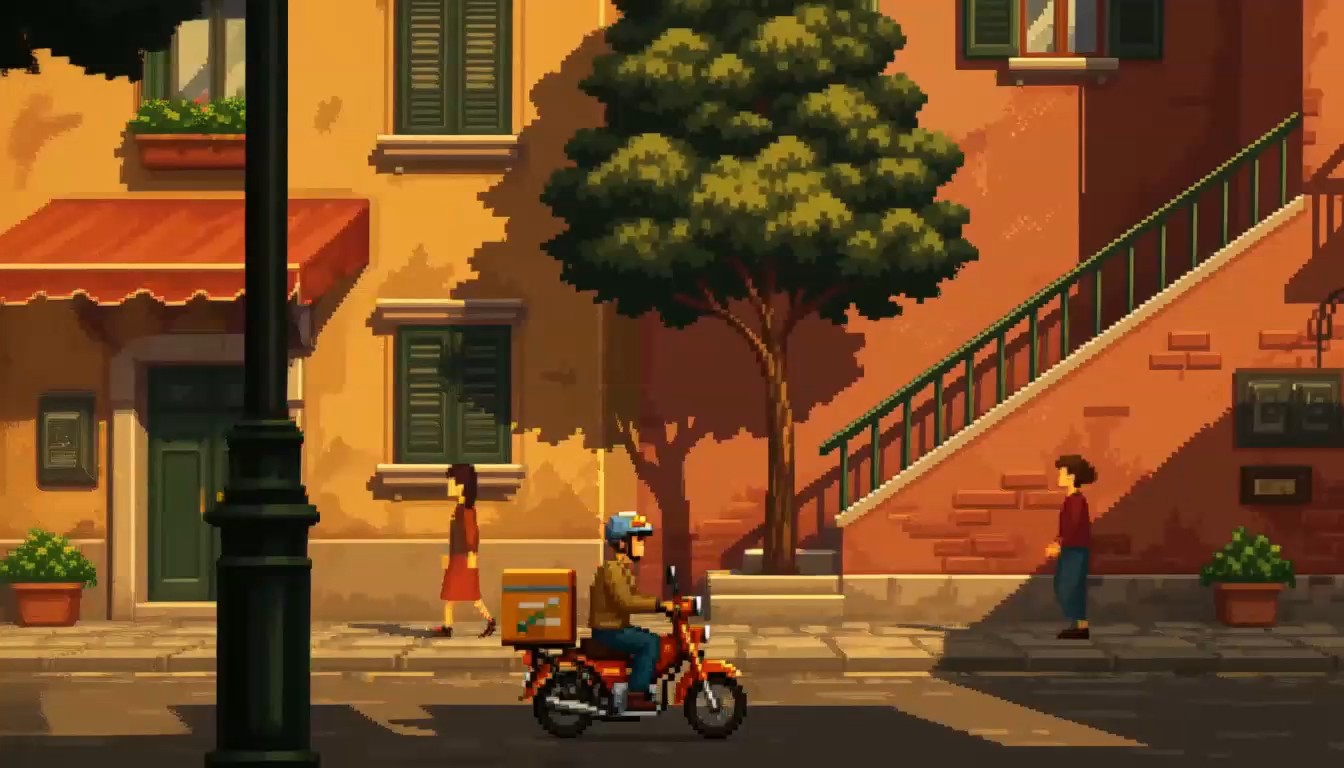
A useful pixel video depends on more than the subject. 16 Bit Pixel Video Generator responds to instructions about action, camera movement, timing, and sound. Ask for a side-tracking camera, a slow push-in, a character running across the frame, arcade ambience, footsteps, wind, or mechanical noise. AI Pixel Art Video Generator gives you room to describe these relationships in natural language. MiniMax H3 Max 16-bit Pixel combines them with the built-in retro treatment, so 16 Bit Pixel Video Generator can create a directed animated shot instead of simply moving random elements.

Why Use 16 Bit Pixel Video Generator

16 Bit Pixel Video Generator combines text-to-video and first-frame animation in one retro-focused workflow. AI Pixel Art Video Generator lets you direct action, camera, and sound, while MiniMax H3 Max 16-bit Pixel automatically supplies the 16-bit visual style. Use it when you want animated pixel scenes rather than a static pixel effect.

Built for Retro Pixel-Animation Video

16 Bit Pixel Video Generator is focused on moving pixel-art scenes, not simply converting a photo into a pixel filter. MiniMax H3 Max 16-bit Pixel generates animated 16-bit-style visuals with audio, making it suitable for game-inspired scenes, retro storytelling, environmental loops, and short action clips. AI Pixel Art Video Generator lets the prompt define what happens while the model handles the visual treatment. This makes 16 Bit Pixel Video Generator more useful when the goal is animation rather than a static retro image.

Create From Text When You Have No Source Image

Start 16 Bit Pixel Video Generator with text when your idea exists only as a scene description. Define a subject, location, action, camera path, and sound. AI Pixel Art Video Generator can turn that direction into a complete animated shot, while MiniMax H3 Max 16-bit Pixel supplies the pixel-art styling. This text-first workflow also makes AI Pixel Video Generator useful for quickly testing several versions of the same retro concept. 16 Bit Pixel Video Generator keeps those prompt revisions in the same workflow.

Start From an Image for More Visual Direction

Use 16 Bit Pixel Video Generator with a first-frame image when composition matters. The uploaded image provides the visual starting point, while your prompt explains what should move next. AI Pixel Art Video Generator can animate characters, vehicles, lights, weather, or camera motion from that opening frame. MiniMax H3 Max 16-bit Pixel is particularly suited to pixel artwork, and the image-led workflow gives Pixel Art Animation Generator searches a direct path from still art to motion.

Guide the Shot Instead of Accepting Random Motion

16 Bit Pixel Video Generator works best when the prompt explains motion clearly. Describe whether a character walks, jumps, looks back, attacks, or remains still while the environment moves. Add camera direction such as tracking, panning, zooming, or a locked shot. AI Pixel Art Video Generator uses those cues to shape the sequence, and MiniMax H3 Max 16-bit Pixel keeps the visual result within the intended retro style. That control helps Pixel Art Animation Generator users create more purposeful clips.

Add Atmosphere With Generated Audio

16 Bit Pixel Video Generator creates video with audio, so sound can be part of the prompt rather than an afterthought. Ask for footsteps, market ambience, rain, wind, machine hum, crowd noise, or game-like environmental sound when it supports the scene. AI Pixel Art Video Generator can combine those cues with the animated action. MiniMax H3 Max 16-bit Pixel therefore works for short clips where both visual motion and atmosphere matter.

Explore Short Loops, Story Beats, and Game Concepts

16 Bit Pixel Video Generator fits creative tasks where a compact animated moment is more useful than a long sequence. Use it for a character entering a shop, a boss appearing, a train passing, a campfire scene, a vehicle chase, or a quiet environment loop. AI Pixel Art Video Generator makes it easy to revise the prompt and test another direction. MiniMax H3 Max 16-bit Pixel gives AI Pixel Video Generator and Pixel Art Animation Generator workflows a consistent retro-video foundation.

What Creators Say About 16 Bit Pixel Video Generator

Creators use 16 Bit Pixel Video Generator for pixel-art storytelling, game concepts, animated illustrations, atmosphere studies, and short social clips. AI Pixel Art Video Generator gives them prompt-level control, while MiniMax H3 Max 16-bit Pixel keeps each result centered on retro pixel animation.

Indie Game Creator

I used 16 Bit Pixel Video Generator to test a short tavern entrance scene before building anything in-engine. AI Pixel Art Video Generator followed the walking action and side camera movement well, and MiniMax H3 Max 16-bit Pixel gave the clip the retro look I wanted without me describing every pixel detail.

Evan M.
Evan M.
Indie Game Creator
Pixel Artist

Starting from my own pixel illustration was the useful part for me. 16 Bit Pixel Video Generator kept the opening composition familiar, then added movement to the signs and character. AI Pixel Art Video Generator made it easy to describe the motion, while MiniMax H3 Max 16-bit Pixel handled the overall animation style.

Lena R.
Lena R.
Pixel Artist
Content Creator

I wanted a quick retro city clip with rain, train movement, and station ambience. 16 Bit Pixel Video Generator let me put all of that in one prompt. AI Pixel Art Video Generator was straightforward to iterate with, and MiniMax H3 Max 16-bit Pixel gave each version a coherent 16-bit game-like identity.

Marcus T.
Marcus T.
Content Creator
Motion Design Student

I tested 16 Bit Pixel Video Generator with several camera directions to see how the same scene changed. AI Pixel Art Video Generator responded differently to tracking and push-in prompts, and MiniMax H3 Max 16-bit Pixel kept the retro style consistent enough for me to compare the motion ideas clearly.

Nora K.
Nora K.
Motion Design Student

16 Bit Pixel Video Generator FAQ

Find quick answers about 16 Bit Pixel Video Generator, text generation, first-frame animation, prompts, duration, audio, and aspect ratios. AI Pixel Art Video Generator and MiniMax H3 Max 16-bit Pixel support a focused workflow for turning retro concepts into moving pixel scenes.

16 Bit Pixel Video Generator creates 16-bit pixel-art animation from a text prompt or an optional first-frame image. MiniMax H3 Max 16-bit Pixel applies the retro style automatically and generates video with audio.

Create a moving retro pixel scene from a prompt or image

Turn Your Idea Into a 16-Bit Pixel Video

Start 16 Bit Pixel Video Generator with text or a first-frame image, describe the motion you want, and generate a retro animated clip. AI Pixel Art Video Generator gives you control over the scene direction, while 16 Bit Pixel Video Generator applies the 16-bit look automatically. Use AI Pixel Video Generator workflows for game-inspired moments, animated pixel art, and short stylized scenes. 16 Bit Pixel Video Generator keeps the process focused on a short, directed result.

Generate from text prompts
Animate a first-frame image
Direct action, camera movement, and sound